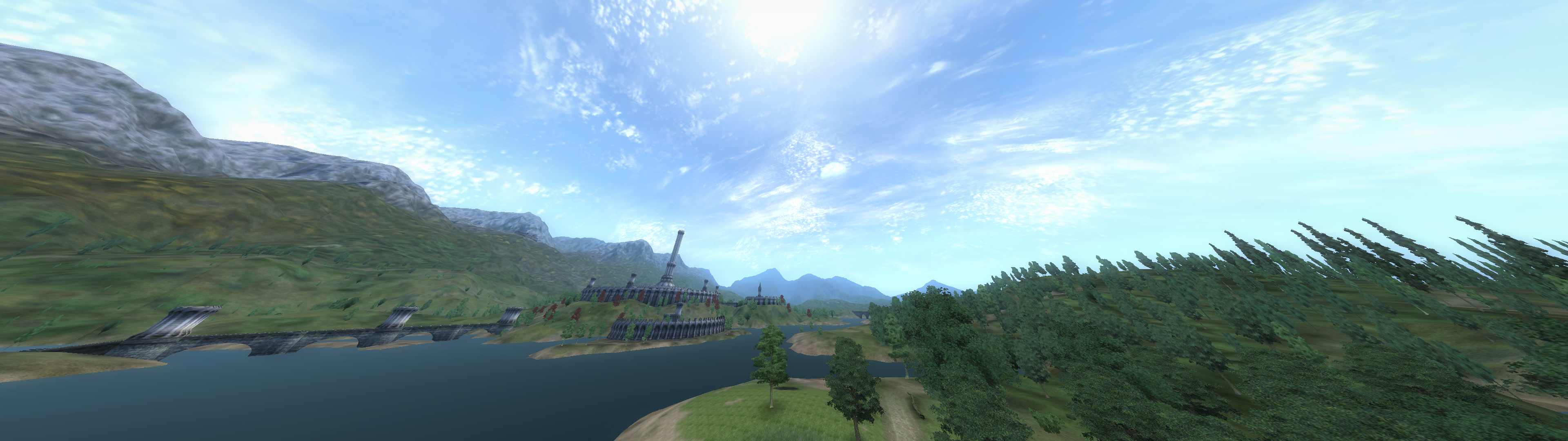
I recently bought a second monitor for study and work purposes but found that my wallpaper of ‘oil on canvas’ Tragedy at Sea was getting a tad bit too repetitive, so it desperately needed a change.
I figured, which of my favorite media could go amazingly as a new computer background? Quite literally the first thought that came to my mind: OBLIVION!
I’ve always been quite an admiring photographer in my overly long gameplay (for a single run) of Oblivion. It’s grown to pretty much be my own comfort game, somewhere I could run away and stay in the beautiful palaces and chateaus of Cyrodiil and the peace of its green-green forests.
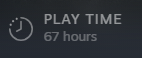 yes, exactly six seven hours at the moment of writing this blogpost
And so I searched, and searched, and searched. I did find some wallpaper-worthy screenshots out on the web, but nothing that really caught my eye. Until I stumbled upon pretty WIDE screenshots of the Imperial City:
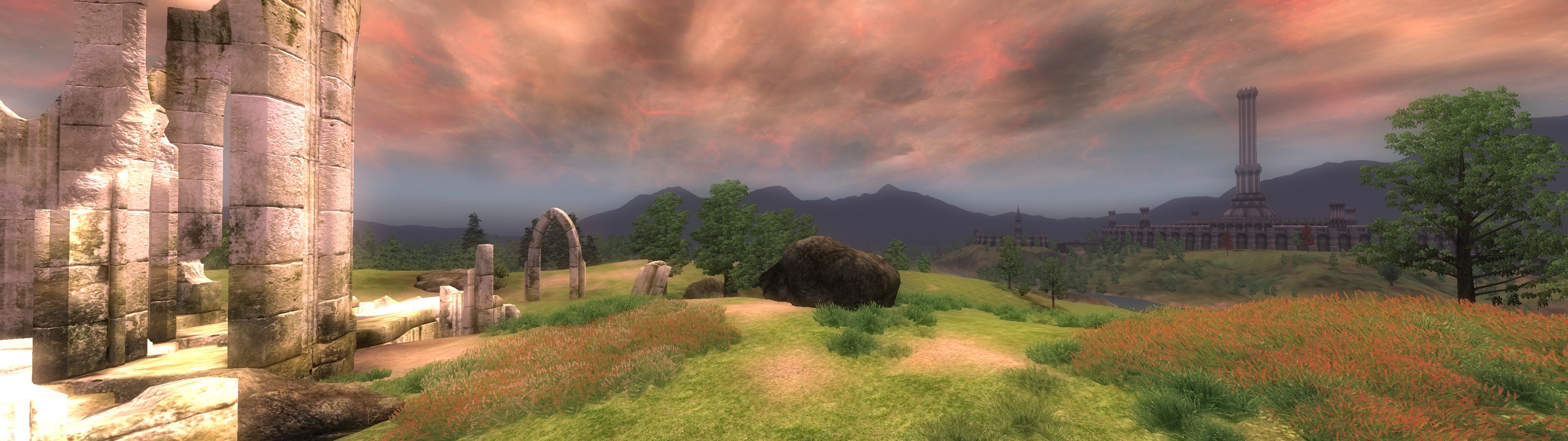
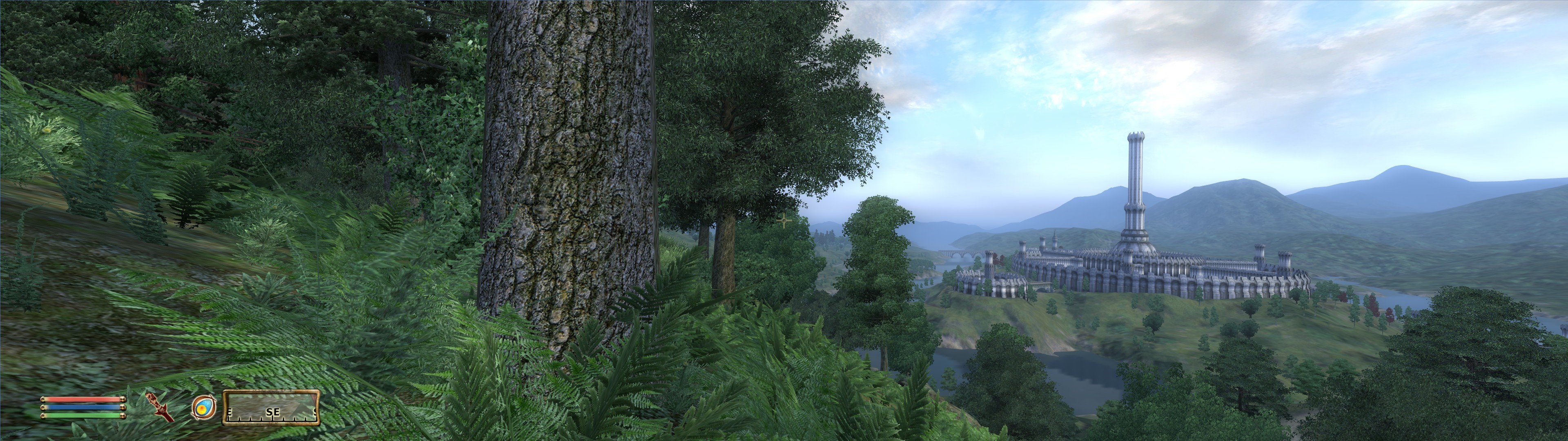
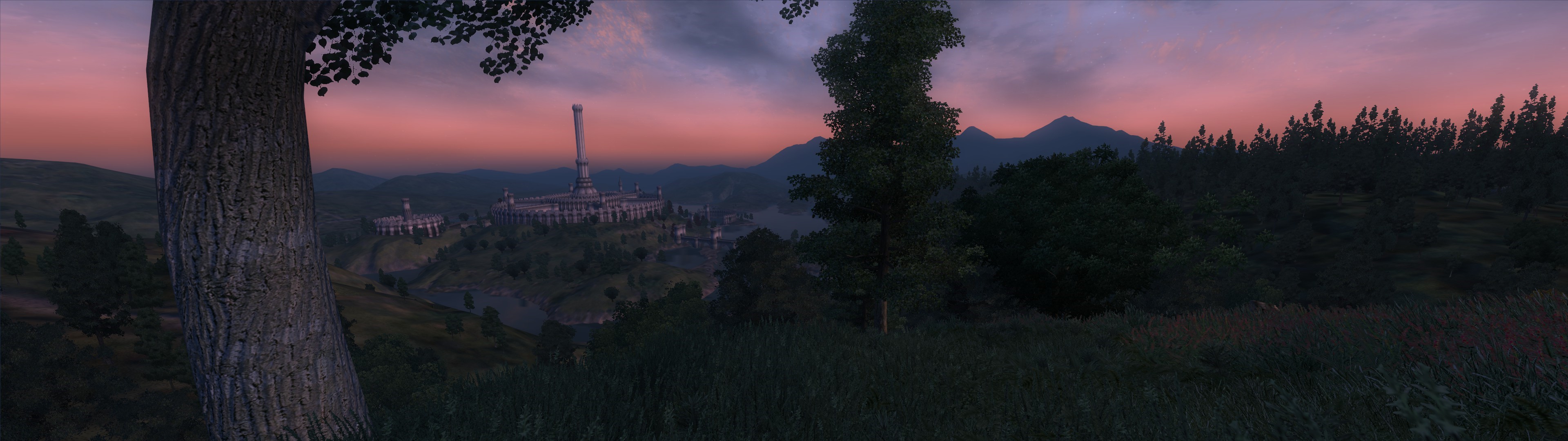
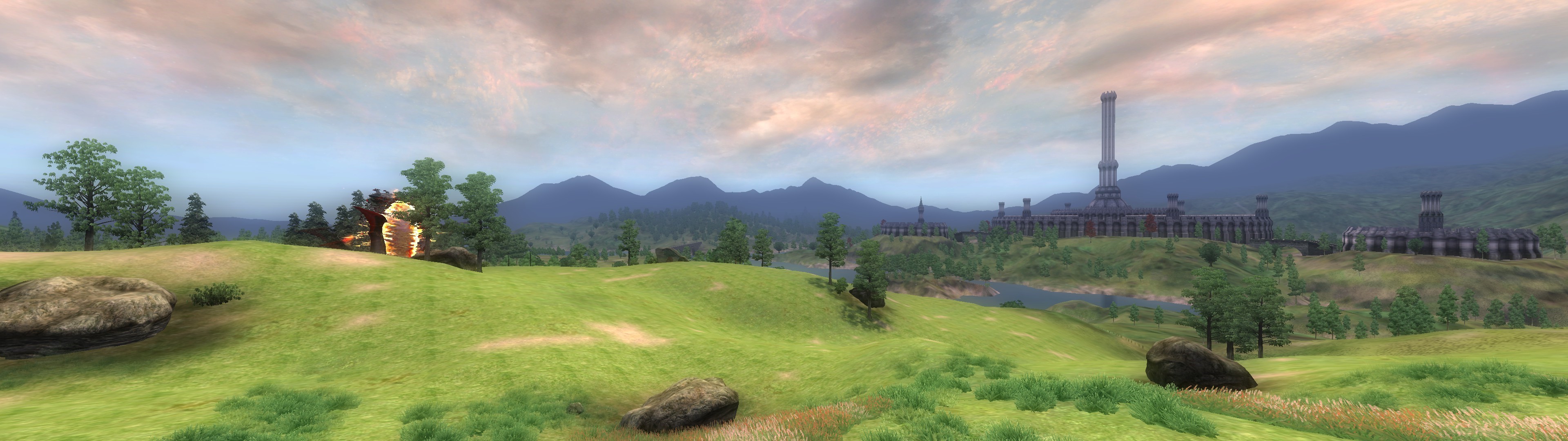
THIS IS PERFECT!
I now have had these wallpapers for quite a while, and they look just so nice. However, I remembered that I’ve taken quite a bit of screenshots myself, albeit not so wide but just as perfect for wallpaper purposes:
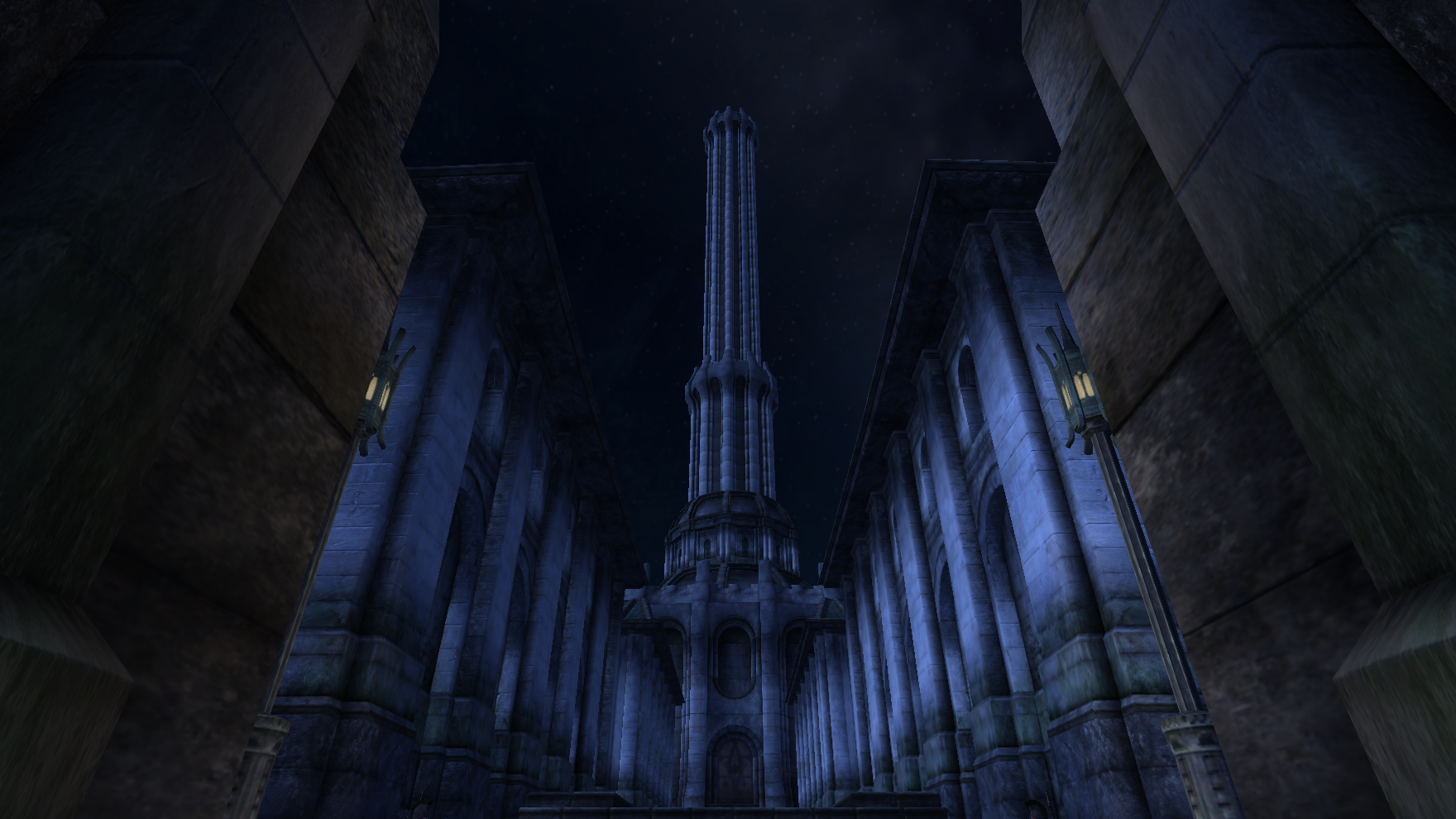
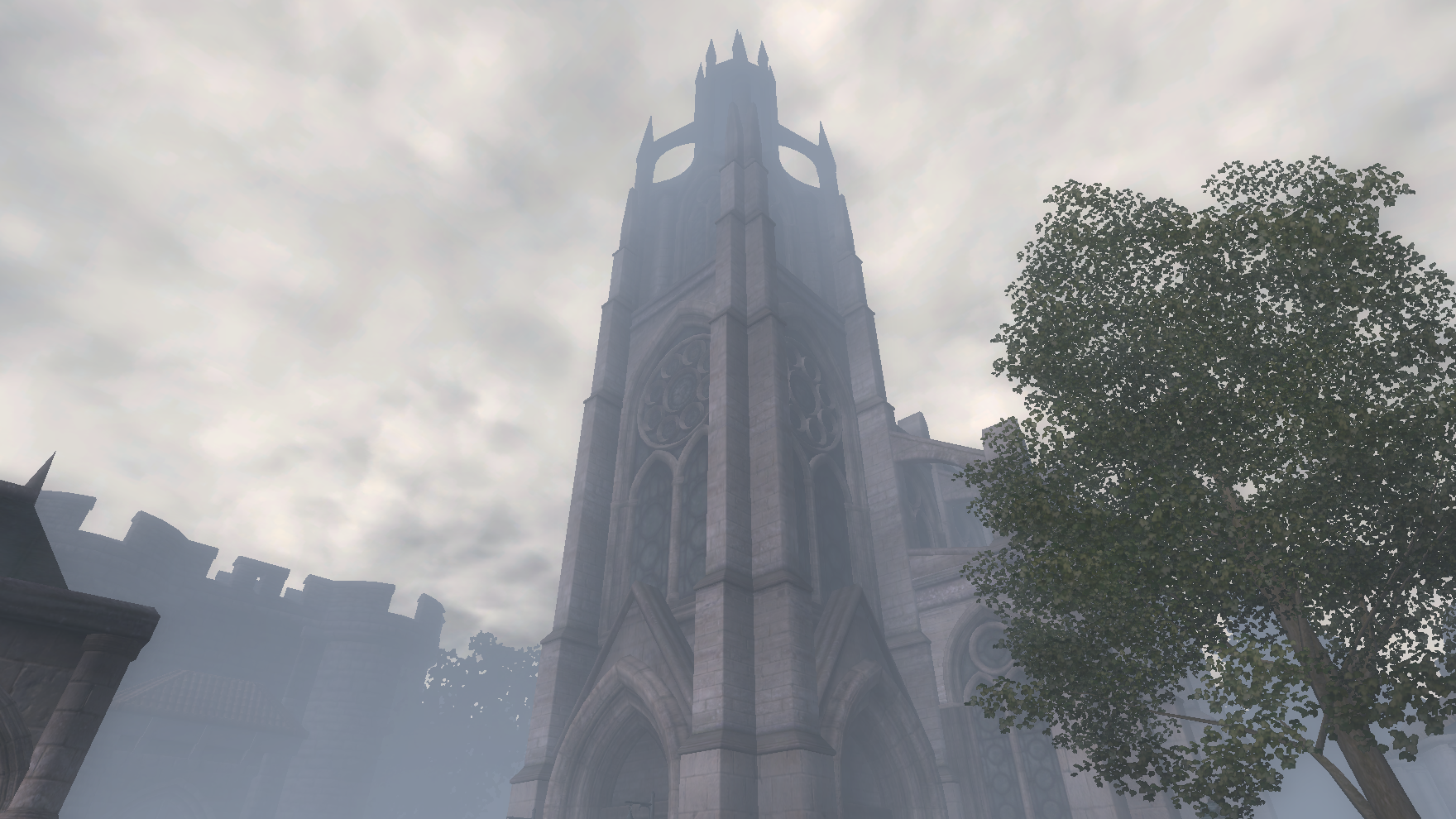 pictured: White-Gold Tower at night time, Imperial City; Chapel of Dibella in the early morning, Anvil
So a question arose: how do *I* create such wallpapers myself?
With a bit of searching, I found that something by the name of Eyefinity exists for AMD graphics cards. In a nutshell, it’s premise is pretty much combining the multiple connected monitors into a single (ultra-wide) one registered by the system, instead of multiple virtual separate monitors. However, to my utter disappointment I found out that the manufacturer of my particular graphics chipset (OEM) has restricted Eyefinity support! >:(
The Solution!
After a bit of tinkering and trying to set up such a configuration, I come up with a solution:
We edit the configuration for oblivion: Oblivion.ini (Usually located in $user\Documents\My Games\Oblivion)
Now the combined width of both of my connected monitors is 3840 (1920*2), so we place that in the width param and leave height as is:
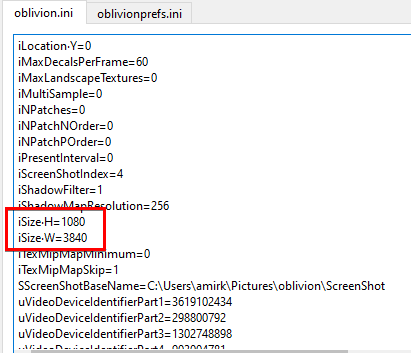
It is also necessary to change the fullscreen parameter to 0 so it actually spans across two screens instead of being attached to one:

HOWEVER! If you have screens that are configured to be on virtually different levels, you may have to tweak them to be the same level if you do not want to see a sudden jump in your screenshots or gameplay:
In Display Settings:
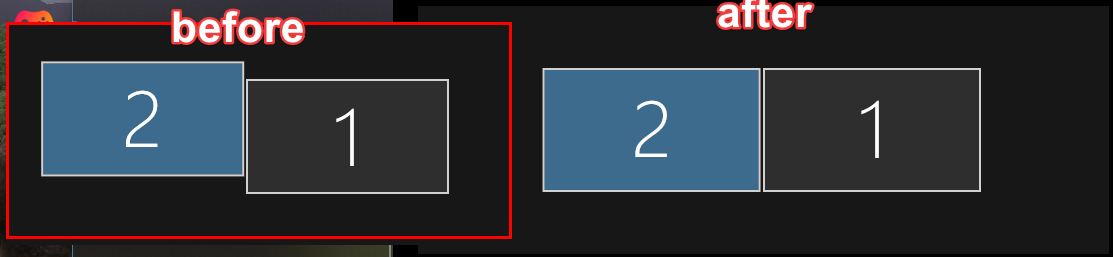
(also, if this wasn’t already evident enough, the secondary screen has to be in extend mode)</sup
CRUCIAL FIX! (For right-sided primary monitors)
In my monitor setup, my primary monitor is on my right, whereas my secondary is on the left, if this is the same case for you, I HIGHLY recommend you do this fix or you’ll see a very stretched out Oblivion game screen on your primary right monitor.
For your non-primary second monitor on the left check this box in Display Settings:

Now, when you launch Oblivion, the window should be attached to the left monitor and extend into the right!